
How to Restore a Large MySQL Database in DirectAdmin (SSH Method)
If you're getting a timeout error in phpMyAdmin or DirectAdmin when trying to restore a MySQL database, your database file is likely too large for the web interface to handle. The solution is to import it via the command line using DirectAdmin's built-in terminal.
Before You Start
- Your database file must already be uploaded to your hosting account
- You'll need the database name, database username and database password — find these in DirectAdmin under MySQL Management
- This method requires basic comfort with the command line — if you'd prefer not to do this yourself, open a support ticket and our team will handle it
Step 1 — Upload Your Database File
- Log into DirectAdmin
- Open File Manager
- Navigate to your home directory (one level above
domains) - Upload your
.sqldatabase file here
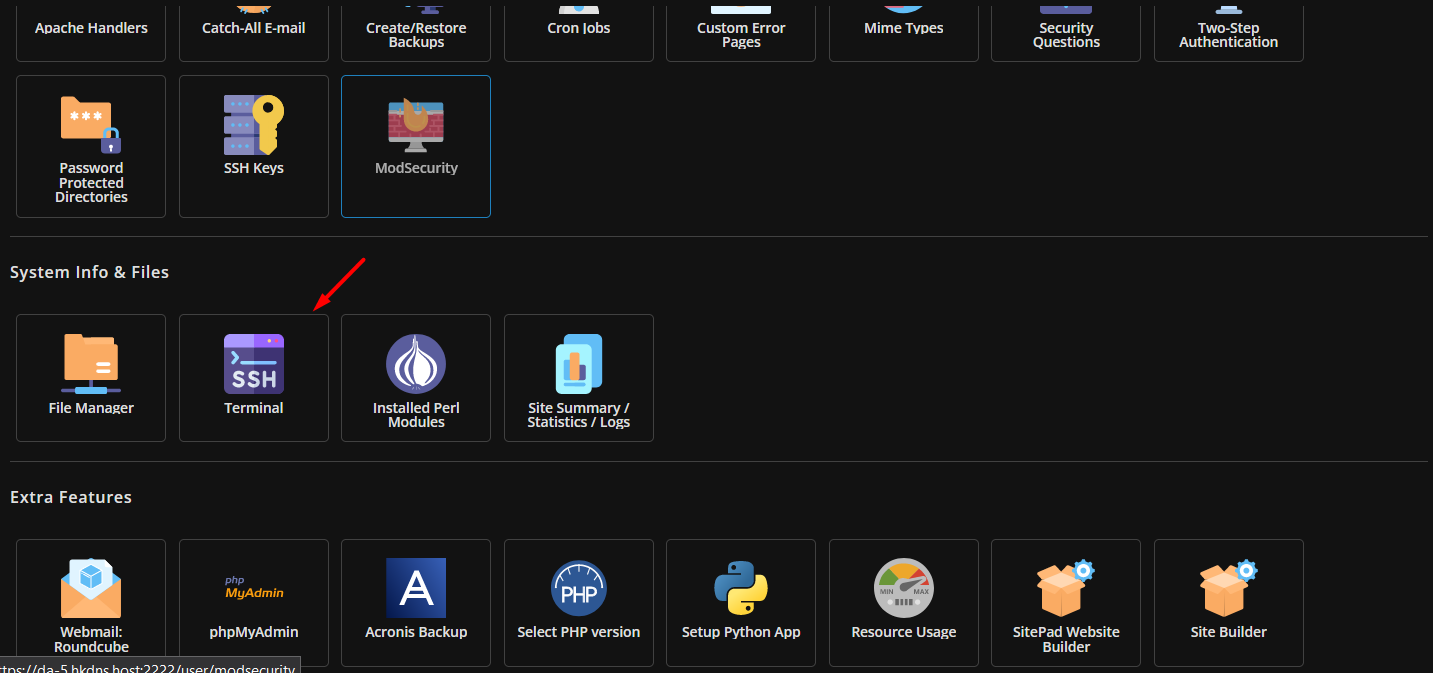
Step 2 — Open the Terminal
In DirectAdmin, click the Terminal icon. This opens a command-line window directly in your browser — no separate SSH client needed.
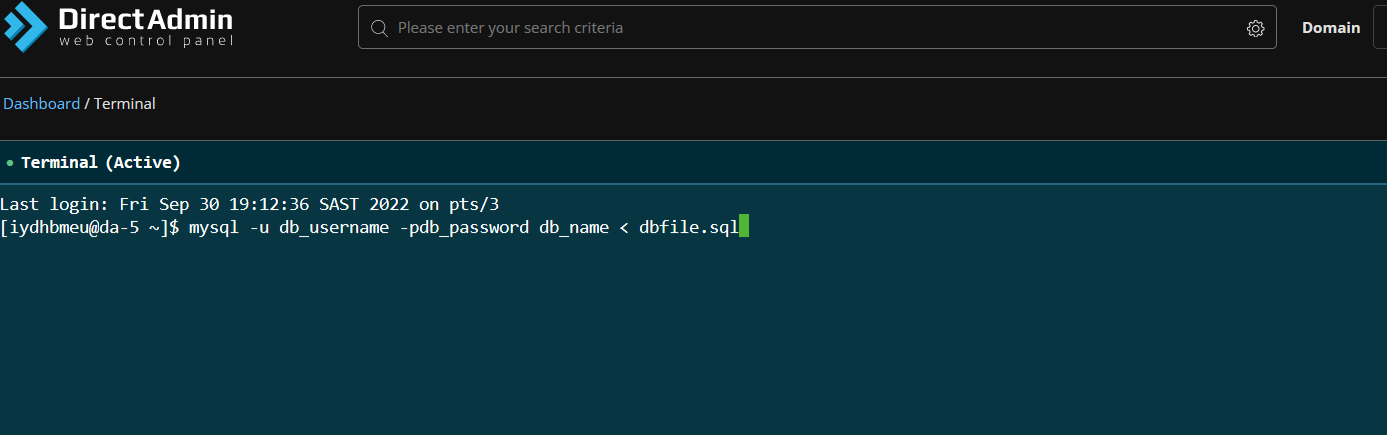
Step 3 — Run the Import Command
Type the following command, replacing the placeholders with your actual details:
mysql -u db_username -pdb_password db_name < /home/yourusername/dbfile.sqldb_username— your database username (from MySQL Management in DirectAdmin)db_password— your database password (note: no space between-pand the password)db_name— the name of the database you want to import intoyourusername— your DirectAdmin account usernamedbfile.sql— the name of your uploaded database file
Example:
mysql -u johndoe_wpdb -pMyStr0ngPass johndoe_wordpress < /home/johndoe/backup.sqlStep 4 — Wait for the Import to Complete
Large databases may take several minutes to import. The terminal will not show progress — just wait until the command prompt returns. Once it does, the import is complete.
Step 5 — Verify the Restore
Log into phpMyAdmin via DirectAdmin and check that your tables and data are present. Then test your website to confirm everything is working correctly.
It may take some time but once completed it will be restored successfully.
Need Help?
If you're not comfortable with the terminal or the import fails, open a support ticket at my.hostking.host. Our team is available every day from 7am to 10pm and can complete the database restore for you
